LarkXR Troubleshooting Reference
Deployment
Troubleshooting Backend Intranet Access Failure
Troubleshooting Backend External Access Failure
Troubleshooting Database Startup Failure
Troubleshooting Black Screen on Server Startup
Troubleshooting Service Startup Failure
Cluster Edition (Linux)
Troubleshooting “not found” Errors in sh Startup Scripts
Public Cloud
Tesla GPU GRID Driver and License Requirements
Configuring a Virtual Display for the Second vGPU
Troubleshooting Resolution Below 1080p on Tesla GPUs
Error Code Explanation
Web Client
Troubleshooting “No available render server, Please try again later.”
Code 102
Code 103
Code 202
Code 203
Code 401
Code 402
Code 403
Code 404
Code 500
Code 501
Code 502
Code 504
Code 601
Stuck on 5/5 Loading Page
Cloud Application Exit Detected
Point-to-Point Connection Disconnected
Frontend & Backend Inaccessible
VR Client
Code 11
Code 900
Code 1001
Continuous Loading
UDP Connection Failure
Other Issues
Code 1002
AR Client
UDP Connection Failure
Secondary Development
Data Channel
Unable to Communicate — Troubleshooting Guide
Failed to Pass the Message Body
Incorrect Message Delivery
Delay in Receiving Messages
UE5 Plugin Packaging: Possible Reasons for "Unknown Cook Failure"
WebSDK
1-5 Cards Loading
SDK License Does Not Exist
vue2-react Running Error (Node v18.12.1)
H.265 WebCodec Not Supported by Browser
Interface call
No Access Permissions
Signature and Timestamp Cannot Be Empty
Invalid Key Pair
Others
Apps Can't Sync
LarkXR Launcher: Check Environment Error
User Experiences
Live Streaming Screen is Black
Picture Quality is Not Clear
SN
Local SN
Invalid Authorization Code
Cloud SN
Authorization Code Is Disabled
Authorization Code Does Not Exist
-
+
首页
Troubleshooting “No available render server, Please try again later.”
This error usually means that LarkXR cannot assign an available render node to the session request. The most common causes are offline render nodes, exhausted node resources, whitelist issues, or render nodes being occupied by remote desktop usage. ## Symptom The web client displays the following message: > No available render server, Please try again later. ## Cause 1: No Online Render Nodes Log in to the management backend and open **Data Center > Resource Monitoring**. If the number of online nodes is `0`, no render server is currently available. 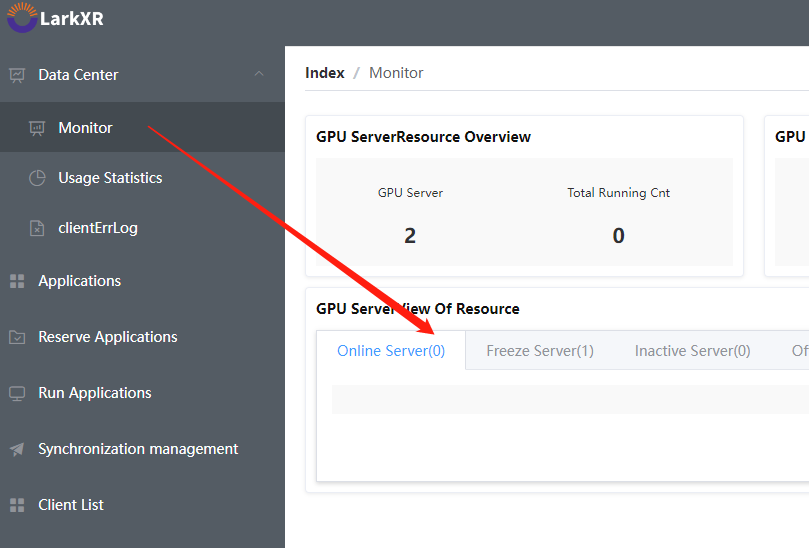 ### Solution 1. Check whether the rendering service is running. 2. Confirm that the render node IP address has been added to the LarkXR whitelist. 3. Check the render service configuration and verify that the Nacos registry IP address in the Render Manager configuration is correct. Reference links: - [How to start the rendering service](https://www.pingxingyun.com/contribute/detail?topicId=10106&categoryId=3) - [How to configure the IP whitelist](https://www.pingxingyun.com/contribute/detail?topicId=10109&categoryId=3) - [Rendering service configuration reference](https://www.pingxingyun.com/contribute/detail?topicId=10106&categoryId=3) ## Cause 2: Node Resource Usage Is Too High If GPU, CPU, or memory usage on a render node reaches the configured threshold, LarkXR will stop assigning new sessions to that node. The current page states that the default behavior is to stop further allocation when any of these resources reaches 90%. [page:10] ### Solution Adjust the resource threshold settings in the management backend if the current limits are too strict for the deployment scenario. Reference link: - [How to configure resource thresholds](https://www.pingxingyun.com/contribute/detail?topicId=10108&categoryId=3) ## Cause 3: Render Resources Are Occupied by Remote Desktop If someone is using the LarkXR backend remote desktop feature, an exclusive application may report insufficient rendering resources because the render node is already occupied. ### Solution 1. Log in to the management backend. 2. Open the **Process Management** page. 3. Stop the process currently using remote desktop resources. 4. Try launching the session again. ## Notes - Start by checking **Data Center > Resource Monitoring**, because this is the fastest way to confirm whether the problem is caused by offline nodes or unavailable capacity. - If online nodes exist but sessions still cannot be assigned, review both the whitelist configuration and the current resource usage before checking application-level issues. - If the problem affects only exclusive applications, also verify whether the render node is being held by another remote desktop session.
admin
2026年5月8日 17:45
转发文档
收藏文档
上一篇
下一篇
手机扫码
复制链接
手机扫一扫转发分享
复制链接
Markdown文件
Word文件
PDF文档
PDF文档(打印)
分享
链接
类型
密码
更新密码
有效期