LarkXR Troubleshooting Reference
Deployment
Troubleshooting Backend Intranet Access Failure
Troubleshooting Backend External Access Failure
Troubleshooting Database Startup Failure
Troubleshooting Black Screen on Server Startup
Troubleshooting Service Startup Failure
Cluster Edition (Linux)
Troubleshooting “not found” Errors in sh Startup Scripts
Public Cloud
Tesla GPU GRID Driver and License Requirements
Configuring a Virtual Display for the Second vGPU
Troubleshooting Resolution Below 1080p on Tesla GPUs
Error Code Explanation
Web Client
Troubleshooting “No available render server, Please try again later.”
Code 102
Code 103
Code 202
Code 203
Code 401
Code 402
Code 403
Code 404
Code 500
Code 501
Code 502
Code 504
Code 601
Stuck on 5/5 Loading Page
Cloud Application Exit Detected
Point-to-Point Connection Disconnected
Frontend & Backend Inaccessible
VR Client
Code 11
Code 900
Code 1001
Continuous Loading
UDP Connection Failure
Other Issues
Code 1002
AR Client
UDP Connection Failure
Secondary Development
Data Channel
Unable to Communicate — Troubleshooting Guide
Failed to Pass the Message Body
Incorrect Message Delivery
Delay in Receiving Messages
UE5 Plugin Packaging: Possible Reasons for "Unknown Cook Failure"
WebSDK
1-5 Cards Loading
SDK License Does Not Exist
vue2-react Running Error (Node v18.12.1)
H.265 WebCodec Not Supported by Browser
Interface call
No Access Permissions
Signature and Timestamp Cannot Be Empty
Invalid Key Pair
Others
Apps Can't Sync
LarkXR Launcher: Check Environment Error
User Experiences
Live Streaming Screen is Black
Picture Quality is Not Clear
SN
Local SN
Invalid Authorization Code
Cloud SN
Authorization Code Is Disabled
Authorization Code Does Not Exist
-
+
首页
Stuck on 5/5 Loading Page
When the web client becomes stuck at the 5/5 loading stage, it indicates that the rendering session has been initialised but the application stream failed to start successfully. This issue can arise from several distinct causes, each requiring a different resolution. ## Cause 1: Incorrect UE Application Path or Missing Startup Parameters The Unreal Engine (UE) application path was not correctly configured under the `Binaries` directory, or the required startup parameters were not filled in. Without the correct path and parameters, the rendering server cannot locate or launch the application. ### Solution Set the UE application path correctly in the Rendering Service Manager. Refer to the following guide for detailed configuration steps: [How to Set the Application Path](https://www.pingxingyun.com/contribute/detail?topicId=10107&categoryId=3) Also some applications may need to manually add arguments, in local environment, startup the application, open "task manager > details", locate executables like "UnrealGame-Win64-Shipping.exe" or similar naming, in "command line" section, locate the argument attached to the executable path. 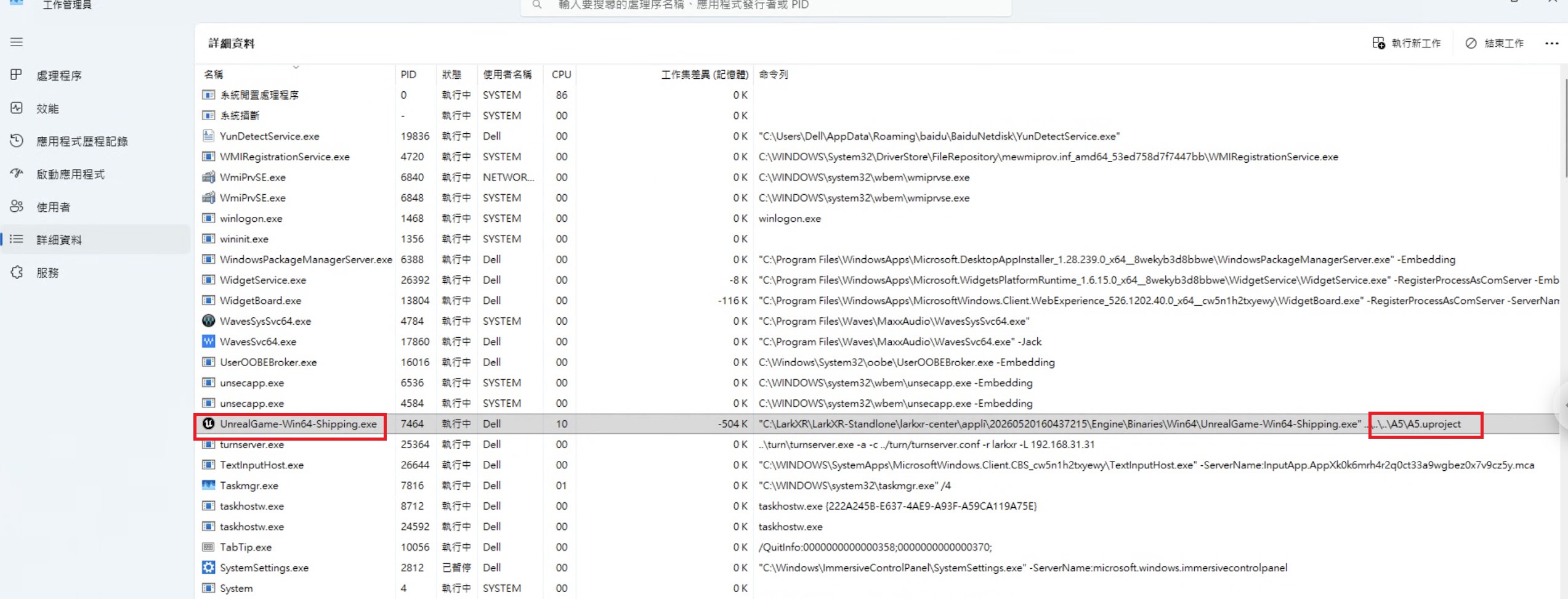 ## Cause 2: Application Startup Requires Manual Interaction If the application displays a popup window upon startup that requires a manual click to proceed, it will block the automated launch process and prevent the stream from being established. ### Solution Remove any startup popup dialogs from the application and republish the application package. Ensure the application can start fully without requiring any user interaction. ## Cause 3: Unsupported Application Development Engine The application was built using an engine version that is not currently supported by LarkXR. ### Solution Verify that the application's development engine is on the list of supported engines: [Supported Engines List](https://www.pingxingyun.com/online/sr3_2.html?id=386) ## Cause 4: Unsupported Browser The user's browser does not meet the compatibility requirements for the LarkXR web client. ### Solution Ensure the user is accessing the web client from a supported browser. Refer to the compatibility list below: [Supported Browsers List](https://www.pingxingyun.com/online/sr3_2.html?id=397) ## Cause 5: Laptop Used as a Rendering Service Node Laptops may not support the direct connection mode required by LarkXR, which can prevent the stream from being established. ### Solution Ensure that the laptop supports direct connection mode and that direct connection is explicitly enabled in the Rendering Service Manager settings. ## Cause 6: Render Server Locked Due to Exclusive Mode If the application is configured to run in Exclusive mode, it may lock the render server's display output, preventing the stream from being captured and transmitted. ### Solution Connect to the render server using a remote management tool such as Sunlogin or another equivalent tool, and manually unlock the server session. ## Cause 7: Application Crash on the Render Server The application crashes immediately upon launch on the render server, causing the stream to fail before it can be established. ### Solution Connect to the render server directly and attempt to launch the application locally to verify whether it starts successfully. Investigate any crash dialogs or error logs for further diagnosis. 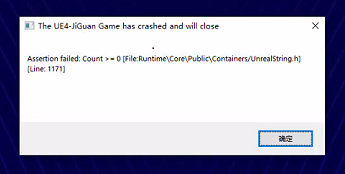 ## Notes - Always verify the application launches successfully on the render server before troubleshooting network or client-side issues. - If multiple causes may apply, work through them in order, starting with the application path configuration.
admin
2026年5月20日 17:32
转发文档
收藏文档
上一篇
下一篇
手机扫码
复制链接
手机扫一扫转发分享
复制链接
Markdown文件
Word文件
PDF文档
PDF文档(打印)
分享
链接
类型
密码
更新密码
有效期