LarkXR Troubleshooting Reference
Deployment
Troubleshooting Backend Intranet Access Failure
Troubleshooting Backend External Access Failure
Troubleshooting Database Startup Failure
Troubleshooting Black Screen on Server Startup
Troubleshooting Service Startup Failure
Cluster Edition (Linux)
Troubleshooting “not found” Errors in sh Startup Scripts
Public Cloud
Tesla GPU GRID Driver and License Requirements
Configuring a Virtual Display for the Second vGPU
Troubleshooting Resolution Below 1080p on Tesla GPUs
Error Code Explanation
Web Client
Troubleshooting “No available render server, Please try again later.”
Code 102
Code 103
Code 202
Code 203
Code 401
Code 402
Code 403
Code 404
Code 500
Code 501
Code 502
Code 504
Code 601
Stuck on 5/5 Loading Page
Cloud Application Exit Detected
Point-to-Point Connection Disconnected
Frontend & Backend Inaccessible
VR Client
Code 11
Code 900
Code 1001
Continuous Loading
UDP Connection Failure
Other Issues
Code 1002
AR Client
UDP Connection Failure
Secondary Development
Data Channel
Unable to Communicate — Troubleshooting Guide
Failed to Pass the Message Body
Incorrect Message Delivery
Delay in Receiving Messages
UE5 Plugin Packaging: Possible Reasons for "Unknown Cook Failure"
WebSDK
1-5 Cards Loading
SDK License Does Not Exist
vue2-react Running Error (Node v18.12.1)
H.265 WebCodec Not Supported by Browser
Interface call
No Access Permissions
Signature and Timestamp Cannot Be Empty
Invalid Key Pair
Others
Apps Can't Sync
LarkXR Launcher: Check Environment Error
User Experiences
Live Streaming Screen is Black
Picture Quality is Not Clear
SN
Local SN
Invalid Authorization Code
Cloud SN
Authorization Code Is Disabled
Authorization Code Does Not Exist
-
+
首页
Code 203
The `code203` error usually indicates that the client WebSocket connection could not be established successfully. In most cases, this is caused by network connectivity issues or incorrect WebSocket endpoint access. ## Symptom The client fails during the connection process and reports `code203`. ## Cause The required WebSocket connection cannot be established correctly. This usually happens because: - The WebSocket address is incorrect. - The target port is blocked by a firewall or security group. - The network path between the client and the server is unavailable. - A proxy, gateway, or external network policy is interfering with the connection. ## Solution ### Test the WebSocket Connection Use an online WebSocket test tool to verify whether the target WebSocket address is reachable: [WebSocket Online Test Tool](http://www.websocket-test.com/) ### Verification Steps 1. Open the online test tool. 2. If the page is already connected to a previous session, click **Disconnect** first. 3. Enter the target WebSocket connection address. 4. Click **Connect**. 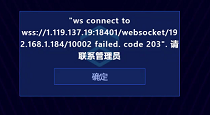 5. If the connection succeeds, the message panel should display a message similar to: ```text Websocket connection has been established, waiting for data... 200 ``` 6. Send a test message. 7. If the message is received successfully, the WebSocket connection is working normally. ## Additional Checks If the connection test fails, check the following: - Whether the WebSocket URL is correct. - Whether the required port is open. - Whether the server is reachable from the client network. - Whether firewall, proxy, or security-group rules are blocking the connection.
admin
2026年5月11日 15:27
转发文档
收藏文档
上一篇
下一篇
手机扫码
复制链接
手机扫一扫转发分享
复制链接
Markdown文件
Word文件
PDF文档
PDF文档(打印)
分享
链接
类型
密码
更新密码
有效期