LarkXR Troubleshooting Reference
Deployment
Troubleshooting Backend Intranet Access Failure
Troubleshooting Backend External Access Failure
Troubleshooting Database Startup Failure
Troubleshooting Black Screen on Server Startup
Troubleshooting Service Startup Failure
Cluster Edition (Linux)
Troubleshooting “not found” Errors in sh Startup Scripts
Public Cloud
Tesla GPU GRID Driver and License Requirements
Configuring a Virtual Display for the Second vGPU
Troubleshooting Resolution Below 1080p on Tesla GPUs
Error Code Explanation
Web Client
Troubleshooting “No available render server, Please try again later.”
Code 102
Code 103
Code 202
Code 203
Code 401
Code 402
Code 403
Code 404
Code 500
Code 501
Code 502
Code 504
Code 601
Stuck on 5/5 Loading Page
Cloud Application Exit Detected
Point-to-Point Connection Disconnected
Frontend & Backend Inaccessible
VR Client
Code 11
Code 900
Code 1001
Continuous Loading
UDP Connection Failure
Other Issues
Code 1002
AR Client
UDP Connection Failure
Secondary Development
Data Channel
Unable to Communicate — Troubleshooting Guide
Failed to Pass the Message Body
Incorrect Message Delivery
Delay in Receiving Messages
UE5 Plugin Packaging: Possible Reasons for "Unknown Cook Failure"
WebSDK
1-5 Cards Loading
SDK License Does Not Exist
vue2-react Running Error (Node v18.12.1)
H.265 WebCodec Not Supported by Browser
Interface call
No Access Permissions
Signature and Timestamp Cannot Be Empty
Invalid Key Pair
Others
Apps Can't Sync
LarkXR Launcher: Check Environment Error
User Experiences
Live Streaming Screen is Black
Picture Quality is Not Clear
SN
Local SN
Invalid Authorization Code
Cloud SN
Authorization Code Is Disabled
Authorization Code Does Not Exist
-
+
首页
Troubleshooting Service Startup Failure
## Symptom After the service starts, the application window or interface does not display correctly, or the service appears to fail during startup because the screen content is abnormal. ## Cause This issue may occur when the operating system display scaling is not set to `100%`. In some environments, non-default scaling can cause the service interface to render incorrectly and may be mistaken for a startup failure. ## Solution ### 1. Open Display Settings On the server, open the operating system display settings and check the current screen scaling value. ### 2. Verify the Scale Setting Locate the **Scale** or **Scale and layout** option. If the scaling value is not set to `100%`, change it to `100%`. 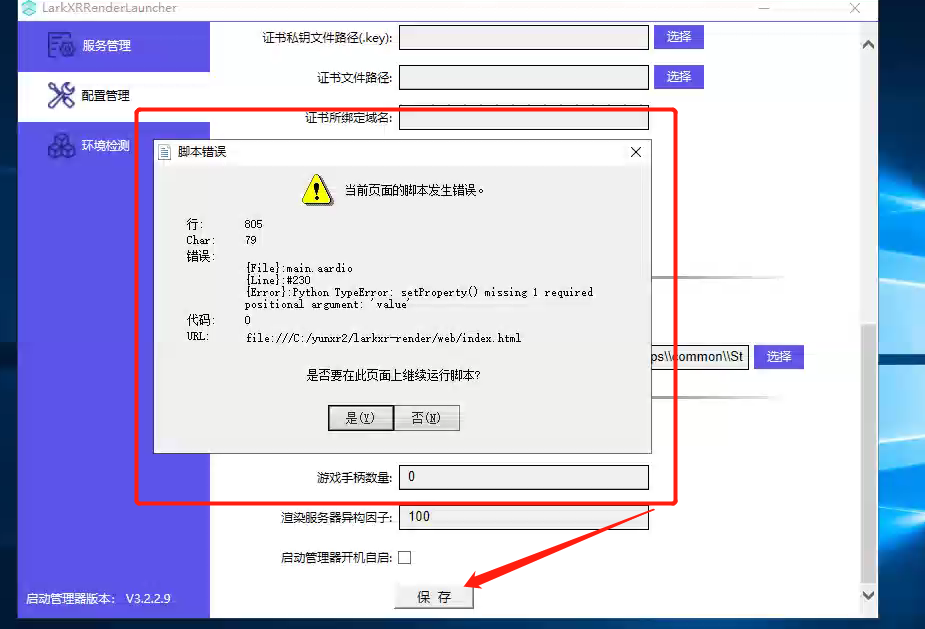 ### 3. Apply the Change After updating the scaling setting, sign out and sign in again, or restart the server if required by the operating system. ### 4. Start the Service Again Restart the service and verify that the interface displays normally. ## Additional Notes - This issue is related to display configuration rather than the service binary itself. - If the service still fails after the scaling is set to `100%`, review the service logs for additional startup errors. - Use the image above as a reference for the correct display scaling configuration.
admin
2026年5月8日 15:06
转发文档
收藏文档
上一篇
下一篇
手机扫码
复制链接
手机扫一扫转发分享
复制链接
Markdown文件
Word文件
PDF文档
PDF文档(打印)
分享
链接
类型
密码
更新密码
有效期