LarkSR3.3
3.3 Environment
Hardware Environment
CPU
Memory
GPU
Sound Card
Software Environment
Operating System
Chrome Browser
VC Runtime Library
DX Runtime
Text Editor
Virtual Sound Card Driver
Virtual Camera Driver
Virtual Handle Controller Driver
System Settings
Turn Off Antivirus and Firewall
Turn Off Application Running Notification
Setup Automatic Login
Set Never Sleep-Never Turn Off the Display
Using Dongle Settings
3D Program Adaptation
Program Adaptation Requirements
Installation and Deployment
System Components
Stand-Alone Version: File Structure Overview
Simple Cluster Version: Package Structure & Deployment Overview
Deployment in Detail
Stand-Alone Intranet Deployment Guide
Stand-Alone External Network Access Guide
Cluster Intranet Deployment Guide (Windows)
Cluster External Network Access Guide (Windows)
Cluster Intranet Deployment Guide (Linux Docker)
Cluster External Network Access Guide (Linux Docker)
Deployment Case Study
Edge Cluster Deployment: Multi-Location Case Study
LarkXR NAT
LarkXR Turn: Built-in TURN Proxy for Rendering Nodes
Nginx Reverse Proxy: Exposing LarkXR Cluster to External Network
Server Port Mapping: Exposing LarkXR Cluster via Port Forwarding
Advanced Cluster Deployment: High Availability and Multi-Master Setup
Dedicated GPU Server
Dedicated GPU Server: Rack Installation and Initial Setup
Operating System Compatibility and Precautions
Running LarkXR
Browser Support
Browser Compatibility Guide
Frontend Usage Instructions
Language Support
Application Overview
Launching an Application
Video Interaction (Client Camera Passthrough)
Voice Interaction (Microphone Passthrough)
Live Streaming
Text Input Methods
Regional Detection and Latency-Based Routing
Resource Allocation Strategy
Virtual Joystick (Remote Pole) Settings
Mobile Touch Gesture Modes
Function Menu
PC Client: Function Menu Guide
Mobile Client: Function Menu Guide
Exiting an Application
Backend Usage Instructions
Logging into the Management Backend
Data Center
Data Center: Resource Monitor
Data Center: Usage Statistics
Data Center: Client Error Log
Applications
Package Management
Package Overview
Add Package
Edit Package
Delete Package
Application Management
Applications
Add Applications
Share
Mouse Mapping
Noun Interpretation
Reserve Applications
Overview
Check Alive Function
Run Applications
Run Applications
Synchronization Management
Synchronization Overview
Client List
SR Client Management
Group Management
Group Management
System Settings
Access Authorization List
Workspace
Parameter Settings
License Type
No Operation Timeout
Storage Configuration
Safety Measurements
Region Setting
Custom Logo
Short Note
Port Mapping
Dispatch Policy
Current Limiting
Theme
Users
Change Password
How to Change Login Password
Port Forwarding
Guidelines on Port Forwarding
Customization
Application Index
Entering Applications
Server Side Settings
Application Storage
Standalone
Local Storage
OSS Storage
AWS S3
Cluster
Local Storage
OSS Storage
AWS S3
General Features
Disk Space
Synchronization
Configure Maximum Synchronization Count
Feature Components
Data Channel
Additional Parameters
Smart Voice
Video Input
Voice Input
External Physical Controller
Interactive Mode
How to Use
Frontend Usage
Interactive Mode Interface Integration
Security Settings
Feature Components
Redis
MySQL8
Database Monitoring (Druid)
Change Username and Password
Disable Statistical View
HTTPS Access
Windows
Linux Docker
Application Authentication
Workplace Access Encryption
SDK ID for Encrypted Secondary Development
Security Settings
Use Application Listing Page
IP Blacklist and Whitelist
Allow Cross-Origin
CORS
CORS For Upload
Frequently Asked Questions (FAQ)
Troubleshooting Common Issues
Update Log
Product Release Notes
-
+
首页
Dedicated GPU Server: Rack Installation and Initial Setup
## 1. Required Materials | Name | Purpose | Note | |---|---|---| | Server | Main compute unit | Delivered by Parallel Cloud | | Guide rail | Mounts to the cabinet rack to support the server | Parallel Cloud Delivery — usually shipped separately | | GPU spoof card | Inserted into the GPU's DP port (one per GPU) | Parallel Cloud Delivery — usually included inside the server box | | IP address | Required for network communication; each node needs at least one fixed IP | Customer-provided; plan the number of IPs in advance | | Ethernet cable | Network communication | Customer-provided; one cable per GPU node | | Switch port | Network connection point for each node | Customer-provided; one switch port per GPU node | ## 2. Server Rack Installation Steps | Step | Action | Description | Image | Notes | | :---: |---|---|---|---| | 1 | Install guide rails or L-type brackets | Mount rails to the cabinet |  | | | 2 | Mount the server | Slide the server onto the installed rails | 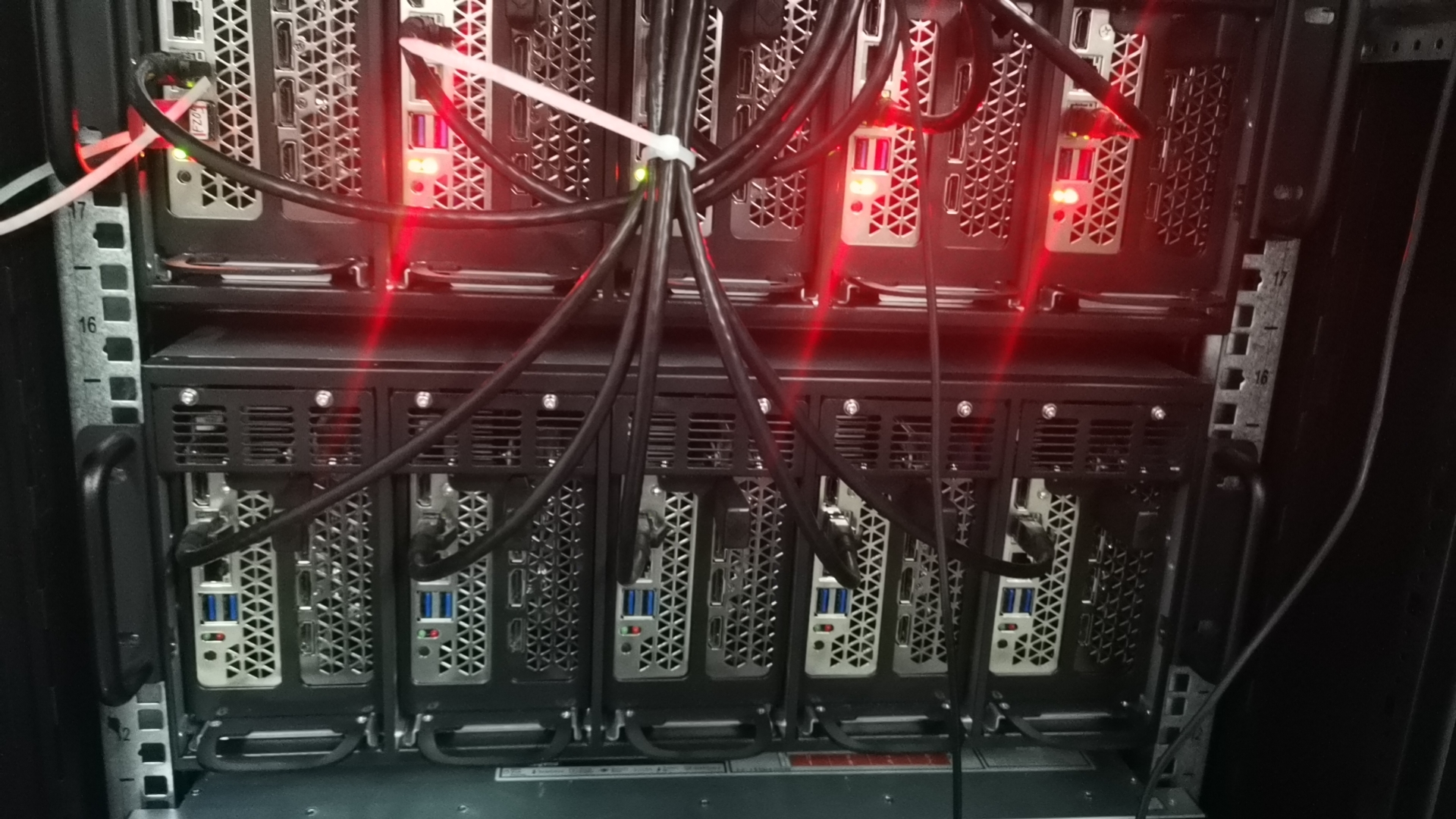 | | | 3 | Insert the power cord | Connect the server to the power supply | 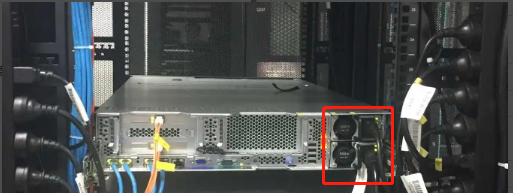 | | | 4 | Insert the Ethernet cable | Connect the server to the network switch | 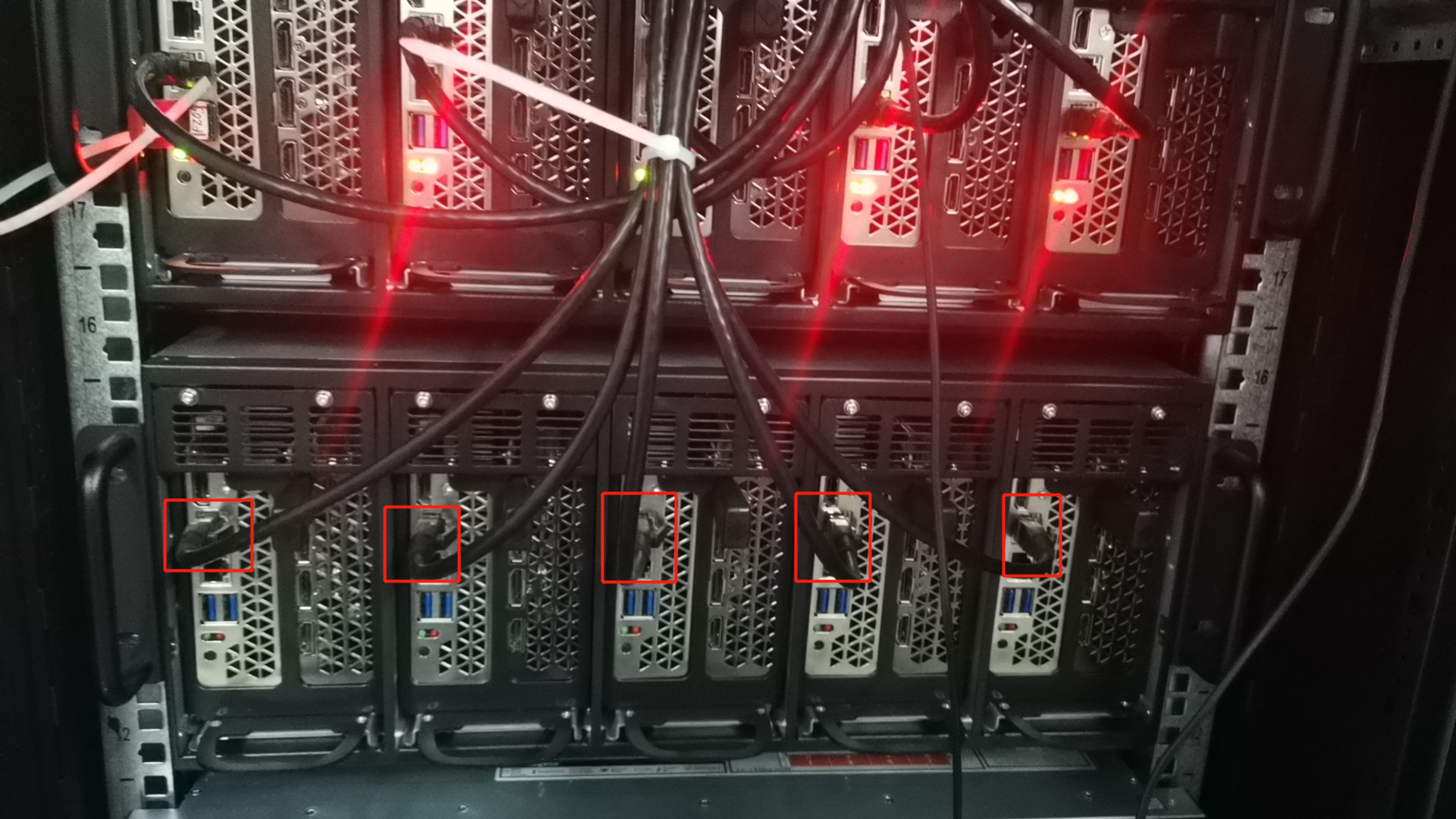 | | | 5 | Power on | Press the power button on each GPU node | 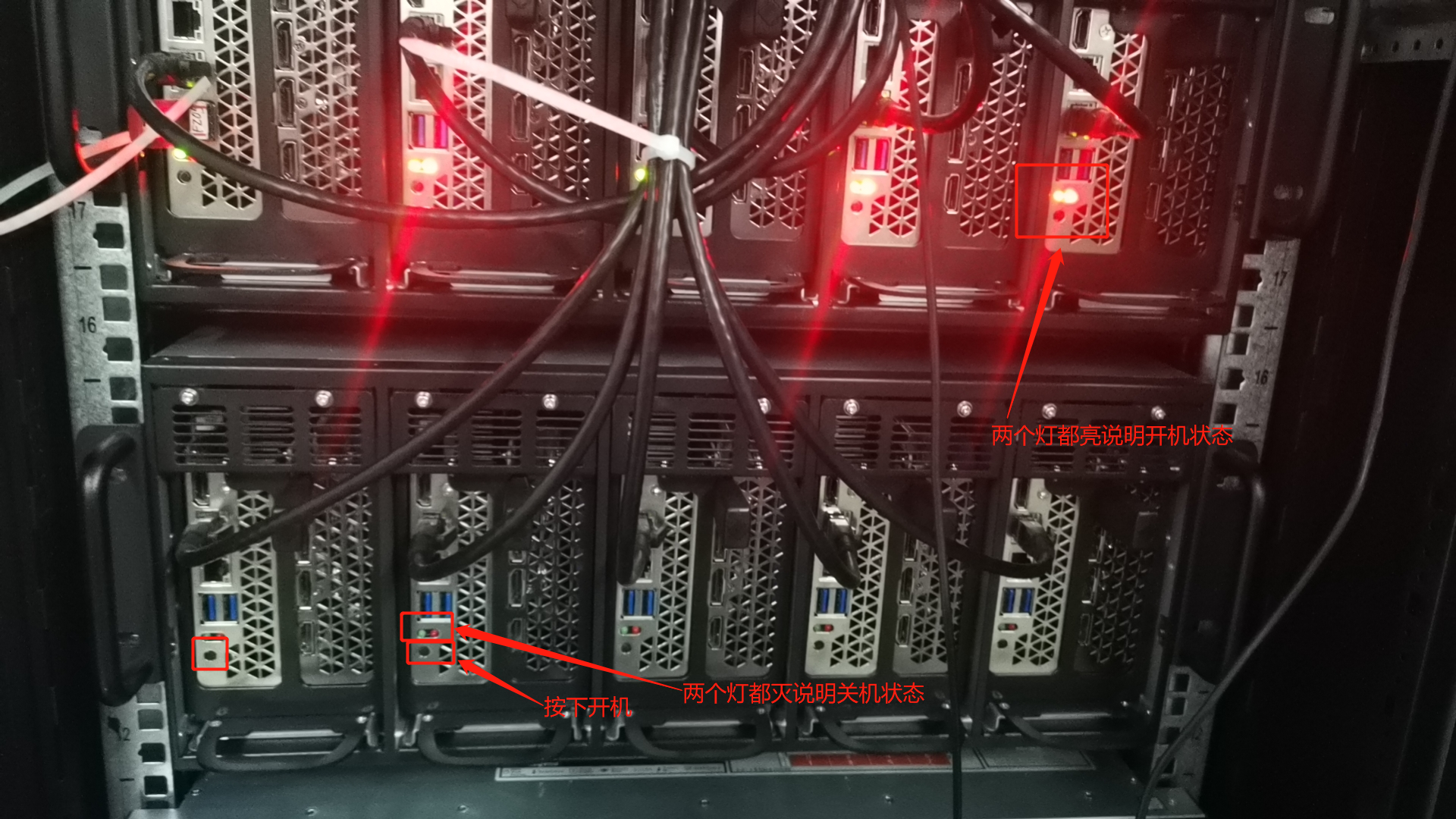 | Default credentials: `administrator` / `siton-2009` | | 6 | Connect a monitor | Required to configure IP and run LarkXR | | Recommended resolution: 1920x1080 | | 7 | Configure IP addresses | Each node in the PCFARM server is an independent OS that needs its own IP | 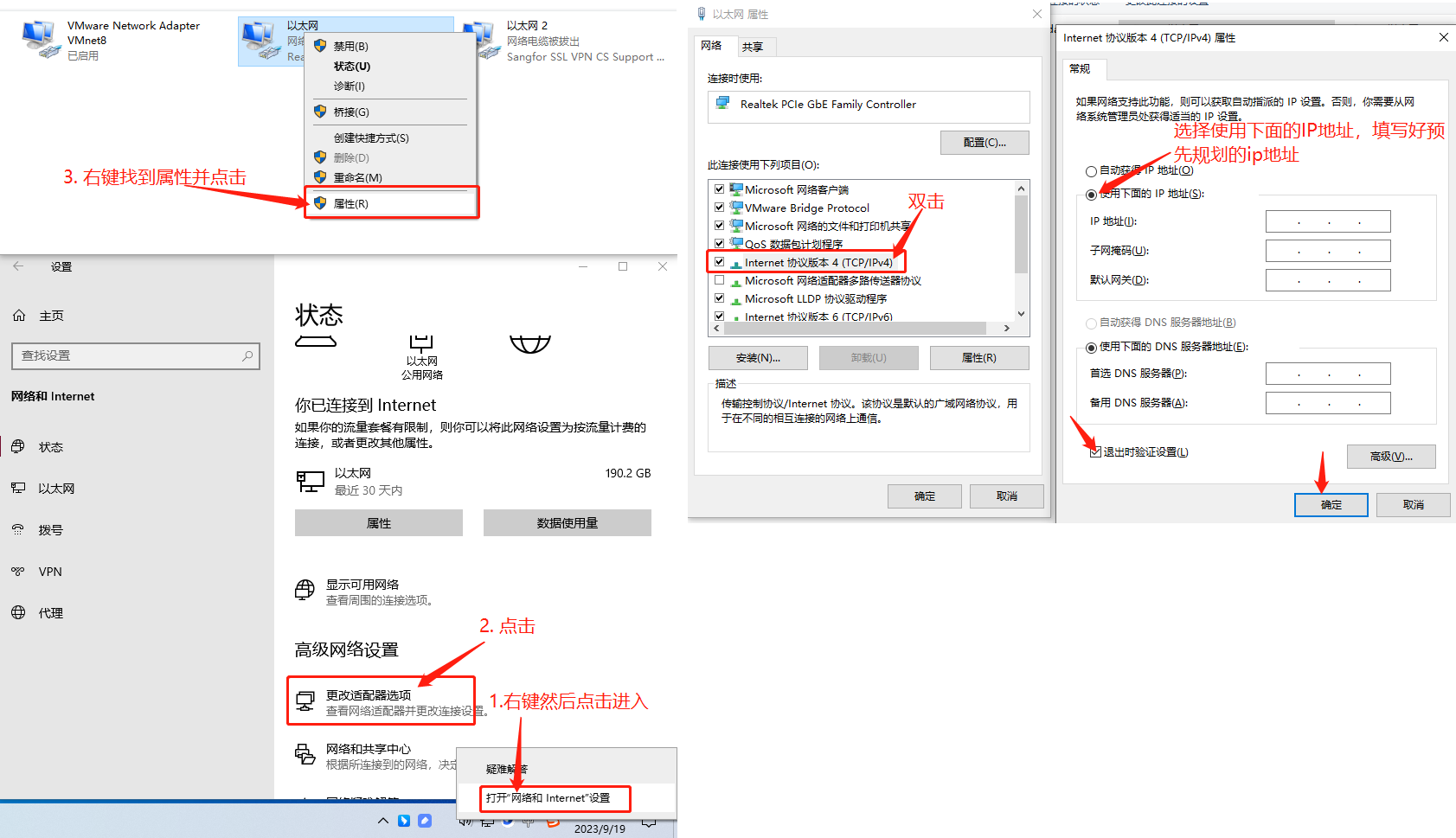 | | | 8 | Configure the management program | Management node setup | 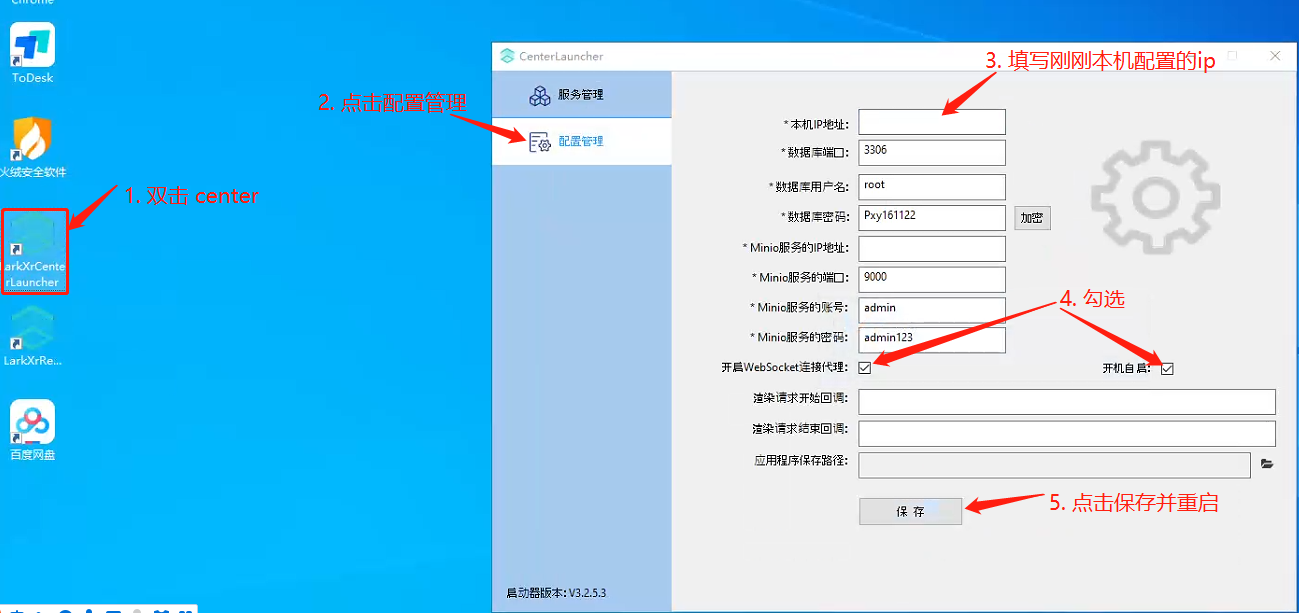 | Only one GPU node runs the management program. Locate it first and configure per the instructions in the image. | | 9 | Configure the rendering program | Rendering node setup | 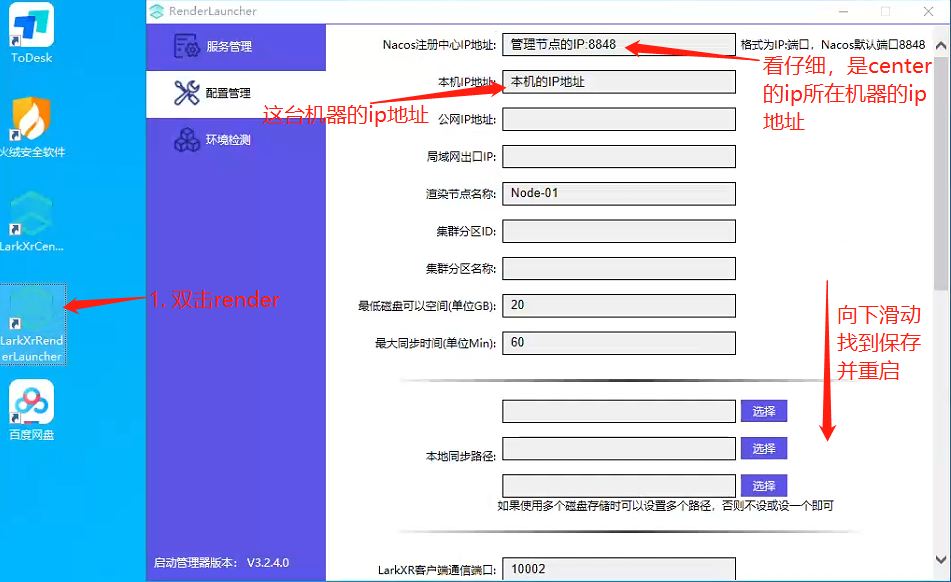 | The rendering program must run on every GPU node. | | 10 | Insert the GPU spoof card | Plug in the graphics card spoofing device | 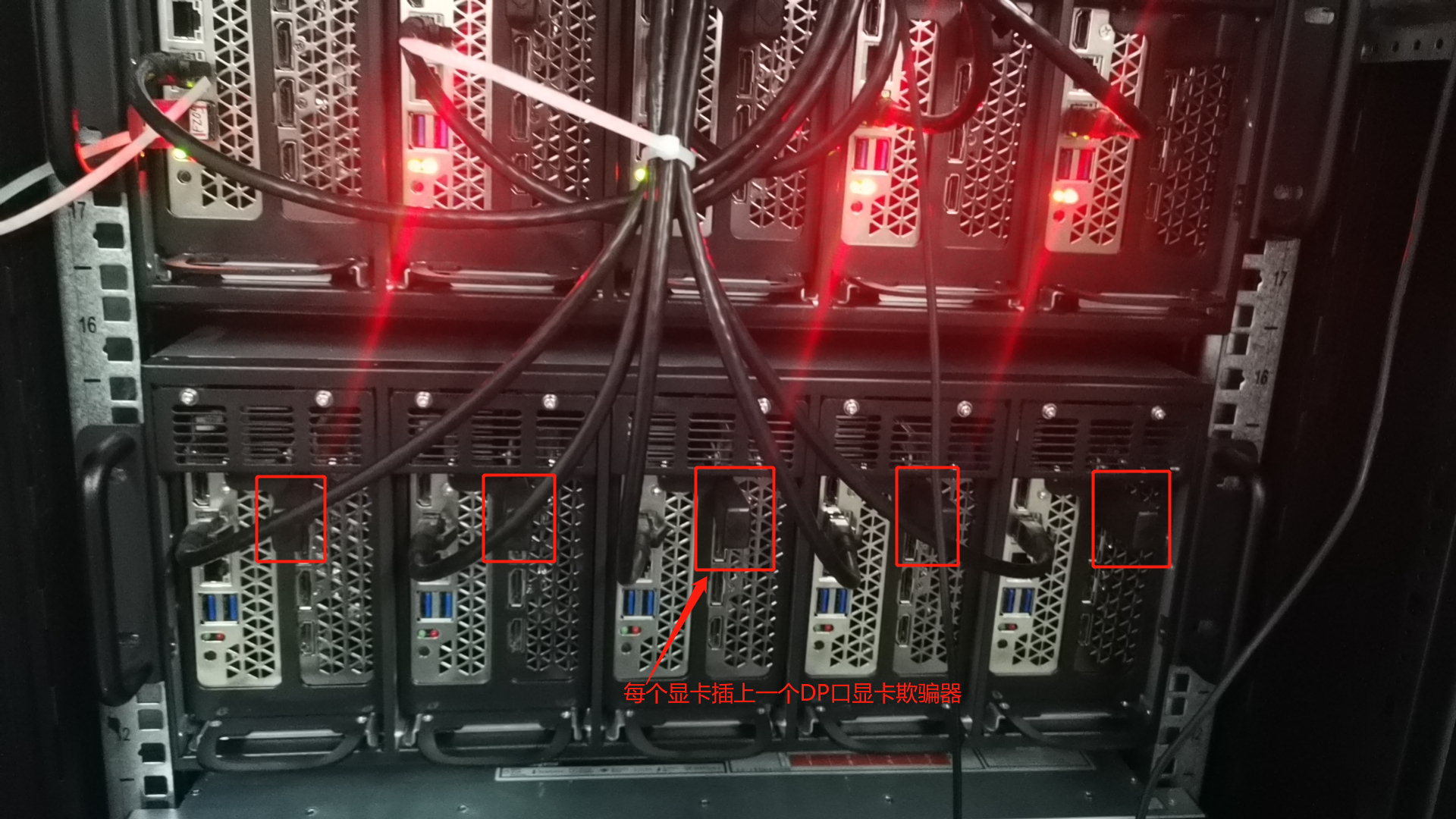 | Insert last — plugging it in earlier causes split-screen on connected monitors. | | 11 | Log in to the LarkXR backend | Access `https://<center-ip>:8182` | 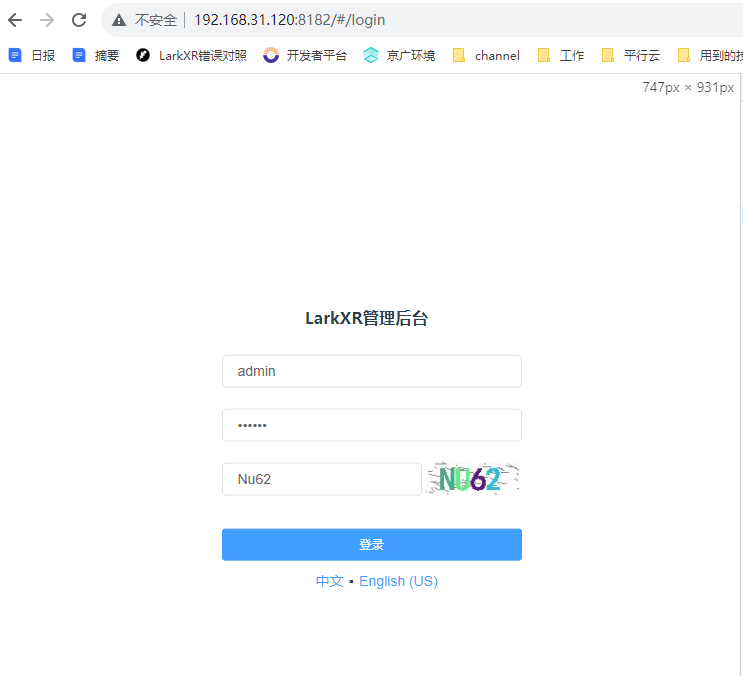 | Default credentials: `admin` / `123456` | | 12 | Log in to the LarkXR frontend | Access `https://<center-ip>:8181` | | | ## 3. Notes - Do not use Windows built-in Remote Desktop (RDP). Use **VNC** (pre-installed), **TeamViewer** (pre-installed), or **Sunflower** instead. - After connecting the Ethernet cable, verify that the indicator lights on both the switch port and the server's NIC are blinking. No blinking indicates a connectivity issue that needs to be investigated.
admin
2026年6月29日 09:48
转发文档
收藏文档
上一篇
下一篇
手机扫码
复制链接
手机扫一扫转发分享
复制链接
Markdown文件
Word文件
PDF文档
PDF文档(打印)
分享
链接
类型
密码
更新密码
有效期