LarkVR3.3
3.3 VR Environment
Hardware Environment
CPU
GPU
Memory
sound card
Software Environment
Operating System
Chrome Browser
VC Runtime Library
DX Runtime
Text Editor
Virtual Sound Card Driver
Virtual Camera Driver
Virtual Handle Controller Driver
Steam VR
System Settings
Turn Off Application Running Notification
Turn Off Antivirus and Firewall
Setup Automatic Login
Set Never SleepNever Turn Off the Display
Using dongle settings
3D Program Adaptation
Program Adaptation Requirements
Installation and Deployment
System Components
Stand-Alone Version
Simple Cluster Version (Windows)
Deployment in Detail
Stand-Alone Intranet
Stand-Alone External Network
Cluster intranet(Windows)
Cluster external network(Windows)
Cluster intranet(Linux Docker)
Cluster external network(Linux Docker)
Deployment Case Study
Edge cluster deployment
LarkXR NAT
LarkXR Turn
Nginx reverse proxy
Server Port Mapping
Advanced Cluster Deployment
GPU dedicated server
Server Deployment Guide
Operating System Precautions
Using
client support
Quest
Pico Neo3
Overview
Backend usage instructions
Login
Data center
Monitor
Usage Statistics
clientErrLog
Applications
Package Management
Package Overview
Add Package
Update package
Delete Package
Application Management
Applications
Add Applications
Noun interpretation
Run Applications
RunApplications
Synchronization management
Index
Client List
VR&AR Client Management
Group Mgt
Group management
Client Monitoring
System Setting
Access Auth List
Workspace
Param Setting
LicenceType
No Operation Timeout
Store
Safe
Region Setting
Custom Logo
Short Note
Port Mapping
Dispatch Policy
Current Limiting
Theme
Users
Change Password
change PWD
Port Forward
guides
Custom
EnterAppli
Server-side
Application Storage
Standalone
Local Storage
OSS Storage
AWS S3
Cluster
Local storage
OSS Storage
AWS S3
General Features
Disk Space
Feature Components
DataChannel
Additional Parameters
Smart Voice
video input
voice input
Security Settings
Feature Components
Redis
MySQL8
Database Monitoring(druid)
Change userName and PWD
Disable
HTTPS access
Windows
Linux Docker
App Auth
Workplace Access Encryption
SDK ID for encrypted secondary development
security setting
Use AppliList Page
IP Blacklist-Whitelist
Allow Cross-Origin
CORS
Cors For Upload
Frequently Asked Questions (FAQ)
list of common issues
Update Log
product updates
-
+
首页
Program Adaptation Requirements
LarkVR 3.2+ supports applications developed with Unity3D, Unreal, and Unigine (SteamVR-based), as well as applications based on OpenXR. The management backend provides four VR application types: - **VR (SteamVR shared):** The standard mode for shared VR applications built on SteamVR. No Steam account login is required. - **VR (SteamVR exclusive):** Used for SteamVR applications that require a Steam account login. Only one application can run per machine, and users must log in to Steam before launching. **Note: As of V3.3.3.0, this type is disabled by default. To enable it, add the following property to `larkxr-center/application.properties`:** ``` pxy.dispatch-policy.enable-exclude-mode=true ``` - **VR (OpenXR):** For applications built on the OpenXR standard. ## General Requirements ### 1. Supported Engines Unreal Engine, Unity3D, DirectX 9/10/11/12, OpenGL. ### 2. Display Mode Applications must launch in **windowed maximized mode**. Fullscreen exclusive mode is not supported for the following reasons: - Fullscreen exclusive mode restricts the server to running only one application at a time. - If the application resolution differs from the server resolution, the server display resolution will be forcibly changed. > **Unity-specific:** Do **not** select the fullscreen option highlighted in the image below.  ### 3. Application Architecture Applications must be **purely 3D and single-process**. The following constraints apply: - Only single-window process applications are supported (e.g., Unreal, Unity3D). - Native Windows pop-ups are not supported; all UI must use graphics rendering. - For applications developed with Qt and OpenGL: replace Qt controls with OpenGL/Widget so they are rendered within the scene. Qt controls will not be captured otherwise. - Applications must not open external documents (Word, PDF, Excel, etc.) via system APIs. ## Requirements for VR (SteamVR Shared) and VR (NVIDIA VR Solution) ### Unreal Engine Applications - **SteamVR must be installed** on the development machine. Without it, controller button inputs may not function correctly. 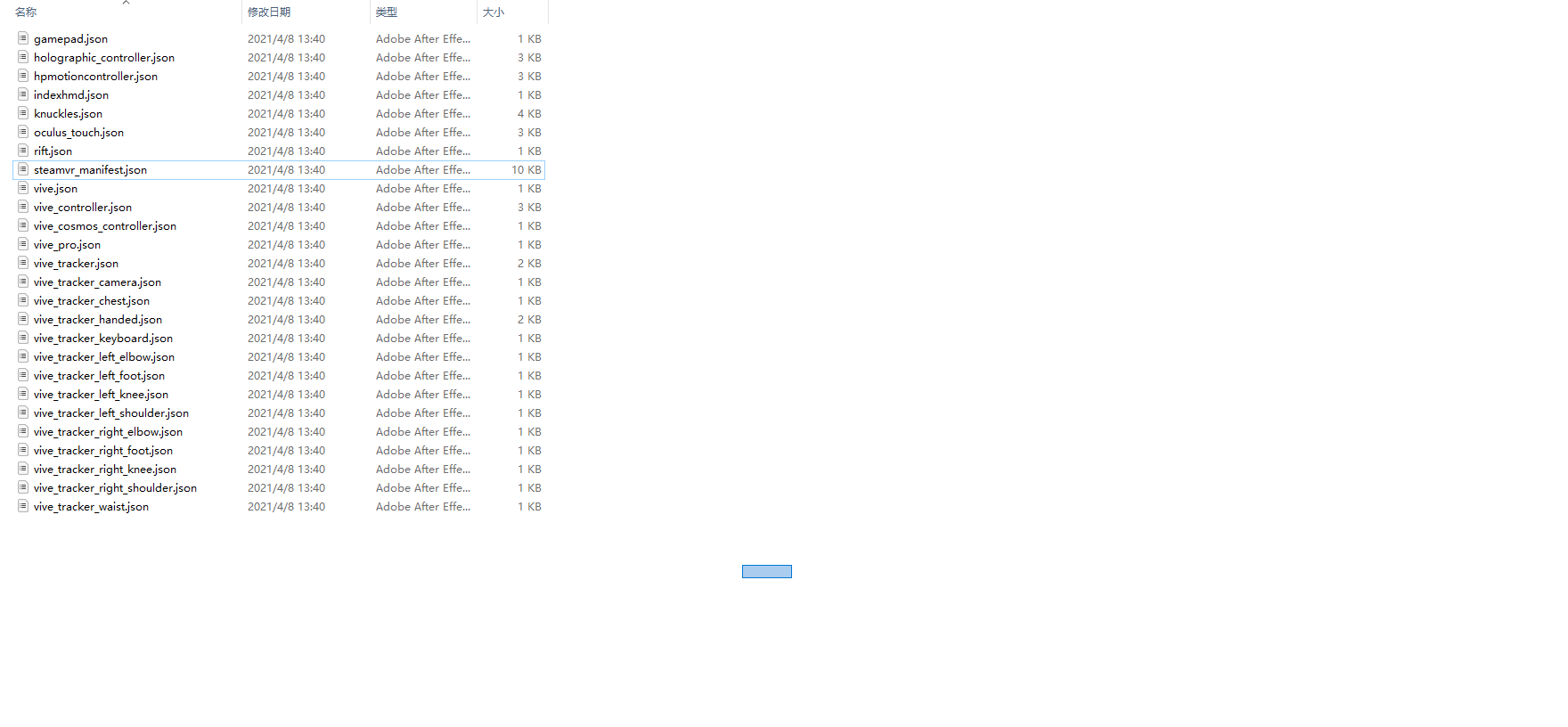 - **Enable "Start in VR"** in the project settings. The application will not launch in VR mode without this option. 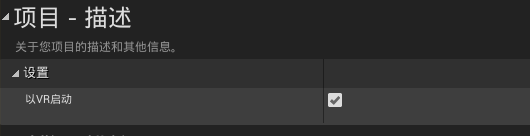 ## Requirements for VR (OpenXR) - The **OpenXR plugin must be selected** within the application settings, as shown below: 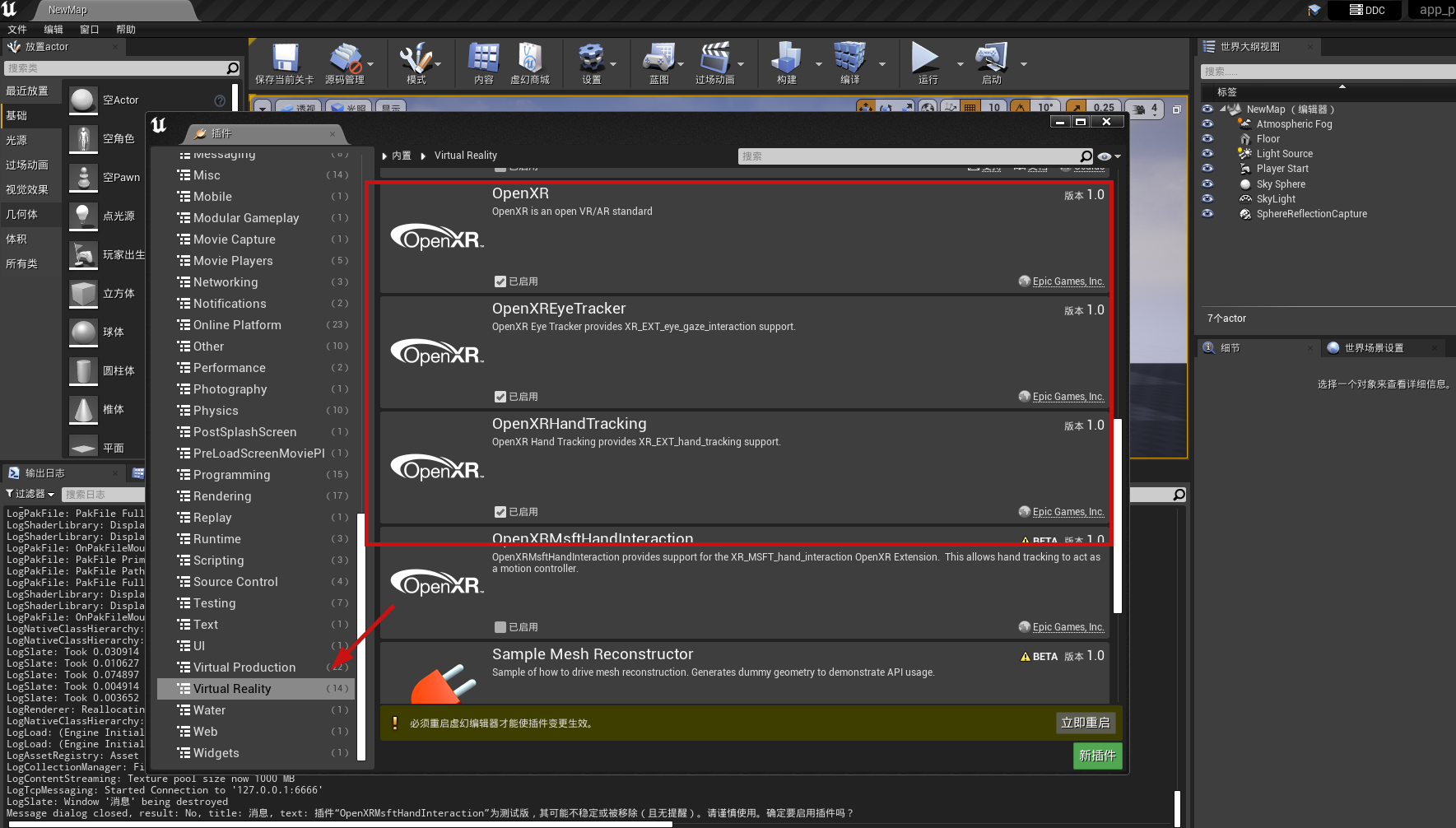 ## Packaging an Unreal Engine Project for Windows (VR) Follow the steps below to package your Unreal Engine project for deployment as a VR application on Windows. ### Step 1 — Open the Plugins Menu In your Unreal Engine project, navigate to **Edit** > **Plugins**. 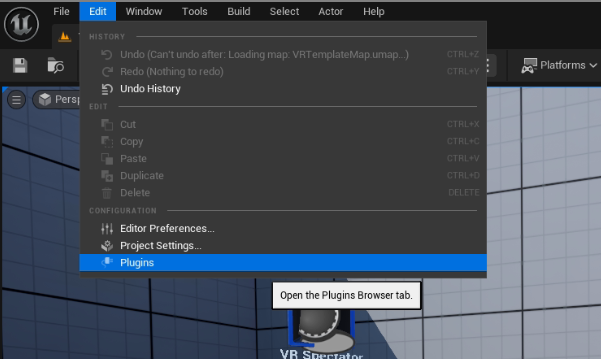 ### Step 2 — Enable the OpenXR Plugin Search for **"OpenXR"** and enable the OpenXR plugin by checking the checkbox. 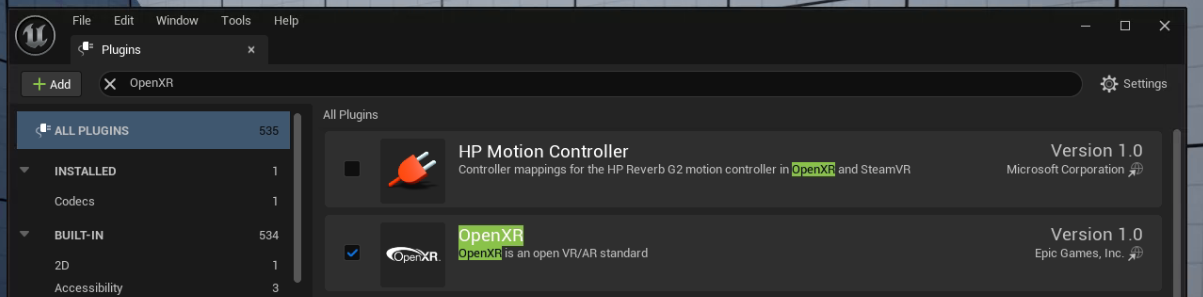 ### Step 3 — Enable Start in VR Ensure that **Start in VR** is enabled in the project settings. 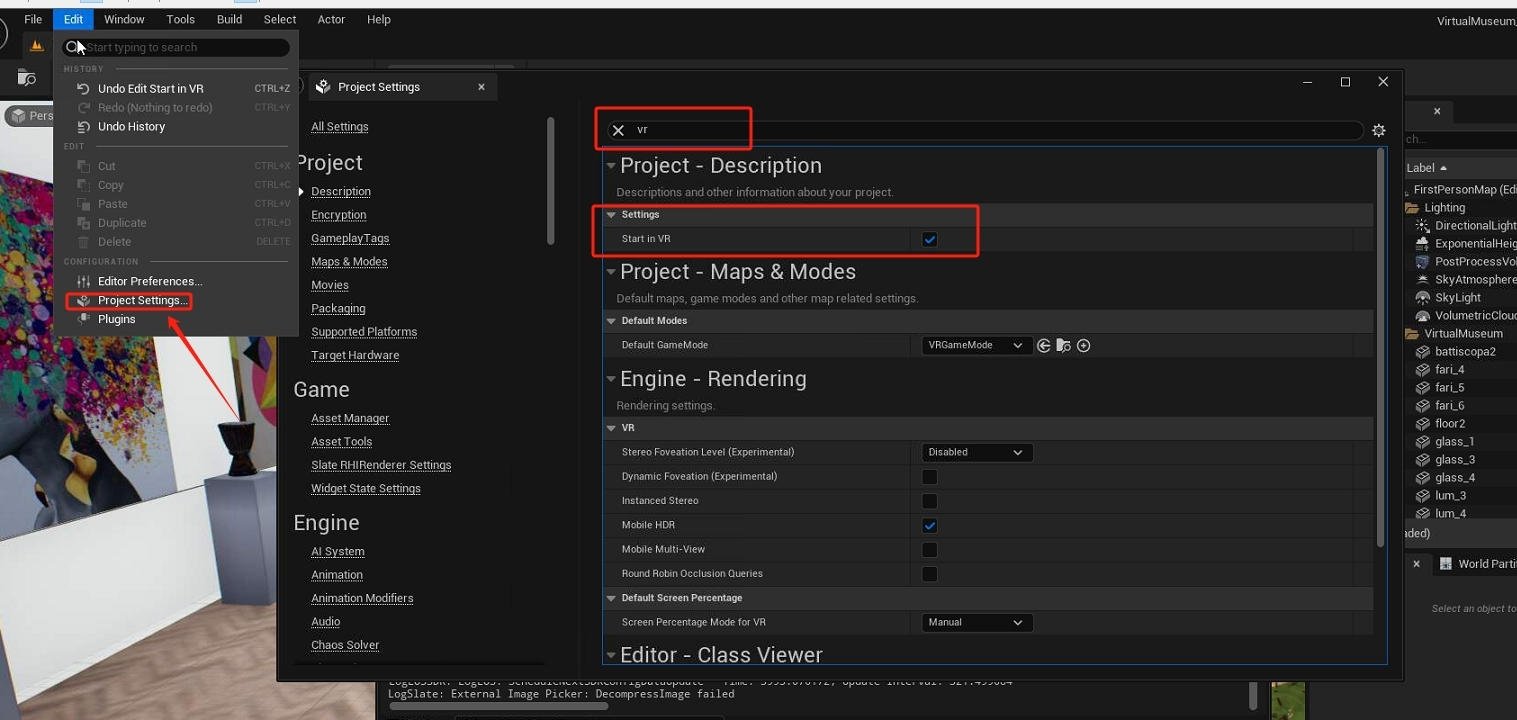 ### Step 4 — Package the Project Go to **Platforms** > **Windows**, select **Shipping**, then click **Package Project**. 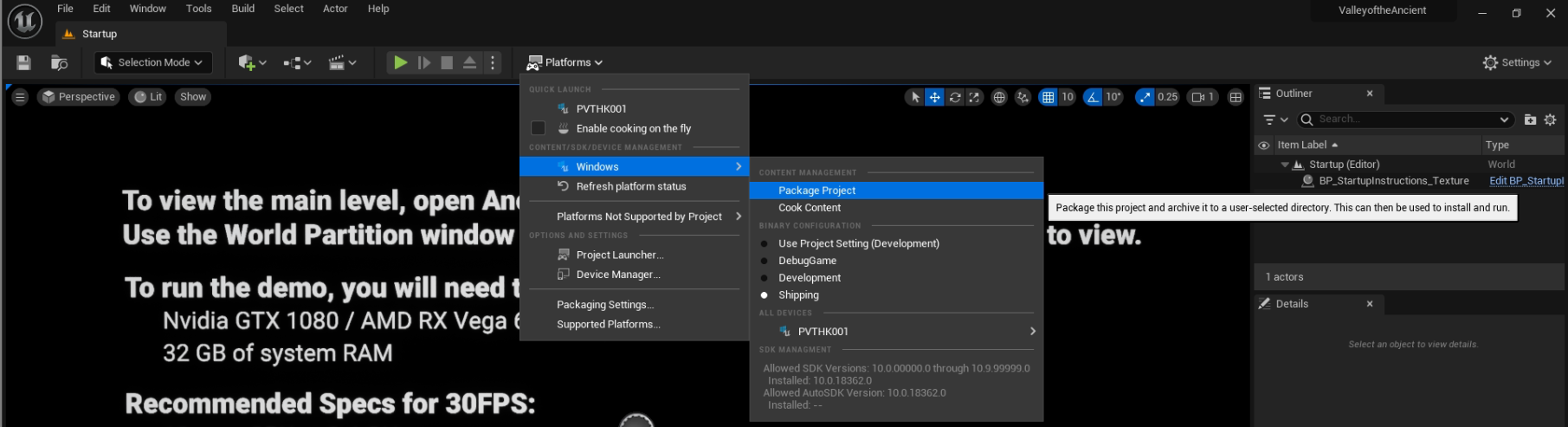 ### Step 5 — Compress the Output Once packaging is complete, compress the output folder into a ZIP archive for distribution.
admin
2026年5月29日 17:48
转发文档
收藏文档
上一篇
下一篇
手机扫码
复制链接
手机扫一扫转发分享
复制链接
Markdown文件
Word文件
PDF文档
PDF文档(打印)
分享
链接
类型
密码
更新密码
有效期